Using Layers for Stickers in Procreate (Without Losing Your Mind)
Okay real talk, have you ever opened Procreate, tapped a few buttons, and suddenly your cute lil’ sticker design just… vanished into the background?
Same, sis. Same.
If the word “layers” gives you art class flashbacks or makes you want to launch your iPad out a window, I’m here to save you from the meltdown.
Because once you get how layers work, it’s like unlocking the “easy mode” for sticker design.
This post builds on what I shared in Procreate Tools for Sticker Design: The Beginner’s Guide for Burnt-Out Moms, so if you’re brand new, you might wanna start there!

In this post, I’m breaking down Using Layers for Stickers in Procreate, why they’re a game-changer for stickers, and how to use them without spiraling into chaos.
I’ll even show you a few tricks I wish I’d known sooner, like how to shade, duplicate, and outline without messing everything up.
💌 Want to follow along with tools that actually make sense?
Download my free Procreate Starter Kit for Sticker Creators, it includes my beginner-friendly brush pack, a simple layered sticker file, and the quick-start cheat sheet I wish I had when I started.
Let’s layer up, sticker-style.
Make Your First Sticker in Procreate
Grab your starter file, the brushes, tips, and step-by-step cheatsheets you need to design your first cute sticker today.
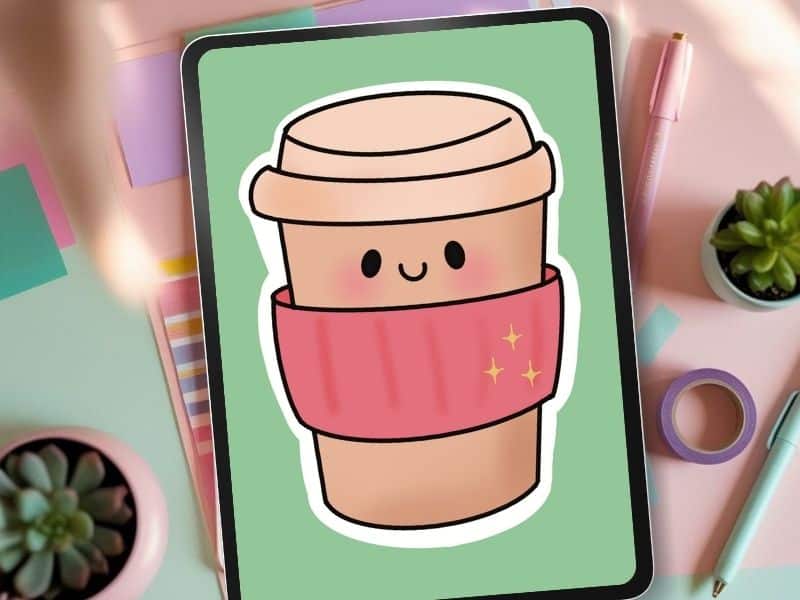

🖌️ Using Layers for Stickers in Procreate
Before we dig in, check out Making Stickers in Procreate for Beginners for a step-by-step walkthrough that pairs perfectly with this post.
Imagine you’re making a sticker, a cute bunny holding a cup of tea, and every single detail, from the blush on her cheeks to the shadow under the cup, is all drawn on one layer. One piece of digital paper.
Suppose you try to tweak her smile or nudge the teacup over just a little, boom.
Chaos. You either mess up something else or have to start over. No, thank you.
That’s where layers save your life, and your sanity.
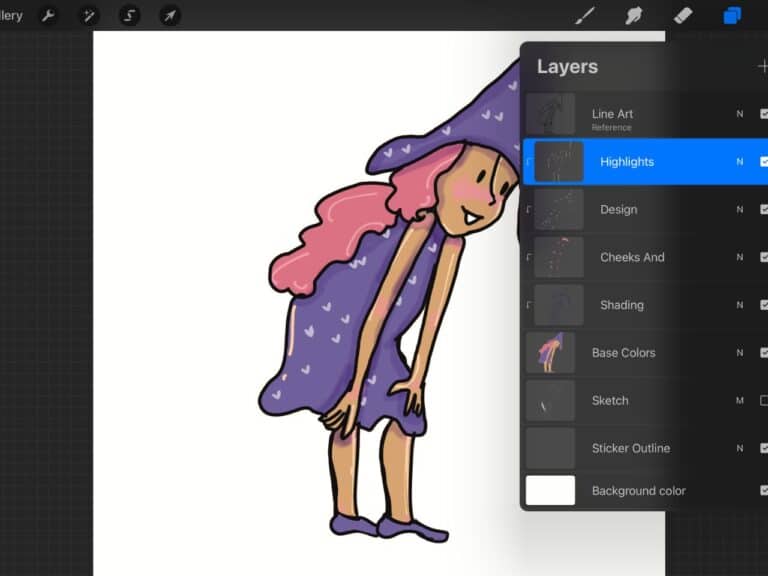
In Procreate, layers are like invisible sticker sheets you can stack on top of each other.
Each one holds a different part of your design, line art, color, blush, shading, sparkles, so you can work on each section separately without accidentally erasing or ruining the others.
Let’s say you’re coloring a coffee cup sticker. Your color layer holds the cup’s dusty pink body.
Then, on the shading layer, you add a soft swipe of muted mustard for depth.
Mess up the shading? No biggie. You just erase it or tweak it without touching the color underneath. Pure magic.
Here’s why this matters for beginners, experts, and especially those of us learning Procreate while our kids climb on the furniture and our coffee goes cold again:

- You can duplicate parts of your design to make sticker sets in a snap.
- You can stay organized and keep your chaos brain from short-circuiting.
- You can play and experiment without fear of messing up your base design.
- Think of it like a digital sticker sandwich, sketch layer on the bottom, outlines in the middle, sparkles on top. You control every slice.
- You can move things around without destroying everything else.
- You can erase just one part without a meltdown.
I dive deeper into beginner sticker chaos and how it helped me reconnect with creativity in How Procreate Stickers Boosted My Confidence as a Creative Mom.
When I first started in Procreate, I didn’t get this. I’d draw everything on one layer, then spend hours trying to fix one part without ruining the rest.
I even deleted finished pieces by mistake because I didn’t know how to name or group my layers properly.
Rest in peace, sleepy donut cat, 2022. Learning to use layers changed everything.
And if you’re worried it’ll be too techy, don’t be. Procreate was made for artists and doodlers, not just professionals.
You can start simple. You can always follow along with the videos on my YouTube channel for even more demos and my chaotic but cute life!

Just use one layer for your sketch, one for outlines, and one for color. Later, when you feel confident, you can start playing with Alpha Lock, clipping masks, and groups.
Even organizing your layers by name, like color, blush, or white outline, will help you feel less scattered.
I promise, once you name one “Layer 42” by accident, you’ll never go back (unless you are me and have to learn lessons the hard way).
So if you’re sitting there thinking, “I don’t get it. I’ll never figure this out,” let me be the voice in your head that says:
You can do this.
You don’t need an art degree.
You don’t need to master everything today.
You just need to add one layer. And then another.
And guess what? You don’t have to do it alone.
I’ve got a free Procreate Starter Kit that gives you everything you need to follow along, including a layered coffee cup file, beginner-friendly brush pack, and a cheat sheet so you’re not crying into your blanket fort mid-sticker.
Ready to layer up like a pro without the overwhelm?

✨ Why Layers Make Sticker Life Way Easier
💾 1. No More “Oops-I-Ruined-It” Moments
Each part of your art stays separate. Mistake? Just fix that layer. No do-overs needed.
🌀 2. Duplicate, Flip, and Reuse
Make five versions of a design without starting over. Duplicate your layers, swap colors, done.
🌈 3. Add Cute Effects Without the Stress
Shadows, blush, white outlines, all on their own layers, so they’re easy to change later.
🧼 4. Clean Workspace = Clear Mind
Label your layers (e.g., “outline,” “color,” “blush”) and you’ll never delete the wrong thing again.

✏️ Layer Basics, Step-by-Step for Sticker Makers
🔹 Step 1: Add a New Layer
Tap the two-square icon > tap the plus sign (+) to add a new layer.
🔹 Step 2: Rename Your Layers
Tap the name > choose “Rename.”
Name it something clear like “outline,” “color,” “sparkles.”
🔹 Step 3: Rearrange Layers
Drag them up or down. Whatever’s at the top shows up on top of your canvas.
🔹 Step 4: Group vs. Merge
Group = keeps things tidy (recommended)
Merge = flattens things (only do this if you're done editing or never if you are paranoid like me)

💡 Layer Tips for Sticker Queens
✨ Alpha Lock = Color Inside the Lines
Tap the layer > choose Alpha Lock
Anything you draw stays inside what’s already on that layer.

✂️ Clipping Mask = Easy Effects
Add a layer above your art > tap > choose Clipping Mask
Now your blush, glitter, or shading only shows up where it should.

🖍️ How I Add a White Sticker Outline
- Turn off background layer if it's on
- Add new layer under everything

- Use your white sticker brush to trace the design
- 3. Turn off other layers
- 4. Use Color Fill to flood the white sticker outline with solid white

- 5. Turn everything back on — boom, clean outline

🎨 Let’s Make a Simple Sticker Together
We’re making a cozy hot coffee cup, with a sleeve, a lid, and a little bit of creative magic.
You can follow the steps below or open the pre-layered version from my free Starter Kit.
Your 5-Layer Setup:
1. Sketch Layer — rough outline of the cup
2. Ink Layer — clean line work
3. Color Layer — base fills
4. Details Layer — shading, sparkle, personality (use Clipping Mask!)
5. White Outline Layer — use your white brush, fill, done
It’s simple, it’s cute, and it gets you layering like a pro. This How to Make Your First Digital Sticker in Procreate (In 10 Minutes!) is also a great practice sticker.
Okay, ya'll, I meant for this to be 5 layers, but I wanted every detail on a separate layer so you could really play and see how the layers work.
So it's more like 11ish layers, but if you put all the colors and details on one layer, then it could totally be 5!
Here is a quick little time lapse so you can see for yourself!
☕ One Cup Closer to Procreate Confidence
Look at you, layering like a boss, making your first cozy coffee sticker, and figuring out how Procreate works without launching your iPad across the room.
💌 Want more tools, tutorials, and encouragement delivered straight to your inbox?
Grab my free Procreate Starter Kit, you’ll get the brush pack, cheat sheet, and the layered coffee cup file to follow along without the chaos.
You’re doing amazing. Go hydrate. Stick a heart on your water bottle to celebrate.
Love and messy buns,
❤️
Cynthia McDonald
Helping women find creativity in the chaos—with stickers, stationery, and a little bit of fun
have you joined the art to income: create & Sell digital products facebook group?
If you’ve ever said, “I want to draw digitally, but I have no idea where to start,” this is your sign.
We learn Procreate tricks, share designs, celebrate tiny wins, and cheer each other on as we start selling what we make.
💕Join Us on Facebook✨
Want More Procreate
Whether you’re just starting out or ready to try your next cute design, here’s a full list of tutorials, tips, and easy wins for making stickers in Procreate:
Start Here: Beginner-Friendly Guides
- Procreate Beginner Guide for Stickers
- Making Stickers in Procreate for Beginners
- How to Design Stickers in Procreate
- How Procreate Stickers Boosted My Confidence as a Creative Mom
- How Procreate Helped Me Reconnect with Creativity
- What I Learned from Trying A Daily Sticker Sketch Challenge(and Failing Sometimes Too)
Learn Cute Sticker Drawing Techniques
- Draw a Cute Blushing Star Sticker
- Designing a Cute Bunny Sticker
- How to Draw Cute Cherries
- Draw a Cloud in Procreate (Easy!)
- Design a Daffodil Sticker in Procreate
- Draw a Baby Duck in Procreate
- How to Make Your First Digital Sticker in Procreate (In 10 Minutes!)
- 3 Easy Outline Effects in Procreate That Make Your Stickers Pop
Procreate Tools, Ideas & Tips
- Easy Procreate Sticker Ideas
- Sticker Making Tips in Procreate
- Procreate vs Canva for Sticker Design
- How to Design Stickers
- Procreate Tools for Sticker Design: The Beginner’s Guide for Burnt-Out Moms
- Using Layers for Stickers in Procreate
- Clipping Masks For Procreate Stickers (with Less Stress and More Fun!)
- Best Canvas Size for Procreate Stickers (Beginner Guide)
- Best Procreate Brushes for Stickers (Free & Paid)
- Resizing Stickers in Procreate: The Busy Mom’s Guide to Sanity, Success, and Not Losing It
- Procreate Color Palettes for Stickers, Effortless Sticker Color Magic
- Eraser Tool Tips for Procreate Stickers (That Even Exhausted Moms Can Master)
I have also created an entire Procreate Starter Kit with a complete sticker file so you can see exactly how I made it!
Be sure and snag your favorite Pin below and add it to your Sticker Making Pinterest Board!