How to Make Your First Digital Sticker in Procreate (In 10 Minutes!)
Ever sat down with your iPad and Apple Pencil, ready to create, only to feel totally overwhelmed? You're not alone!
It's easy to get lost in the possibilities and end up shutting down before you even start.
But what if you could make something fun and creative in under 10 minutes?
This guide will show you how to make your very first digital sticker in Procreate! Plus, you'll get a free brush pack to make it even easier.
Table of Contents
Why Digital Stickers Are Perfect for Procreate Beginners
Stickers are awesome, right? They're a fun way to express yourself, add a little personality to your stuff, and they’re just plain fun to create.
Making digital stickers is a great way to dip your toes into digital art without feeling pressured to create a masterpiece.
Plus, once you get the hang of it, the possibilities are endless.
You can use your stickers for digital planners, spice up your social media posts, or even print them out to use on physical items!
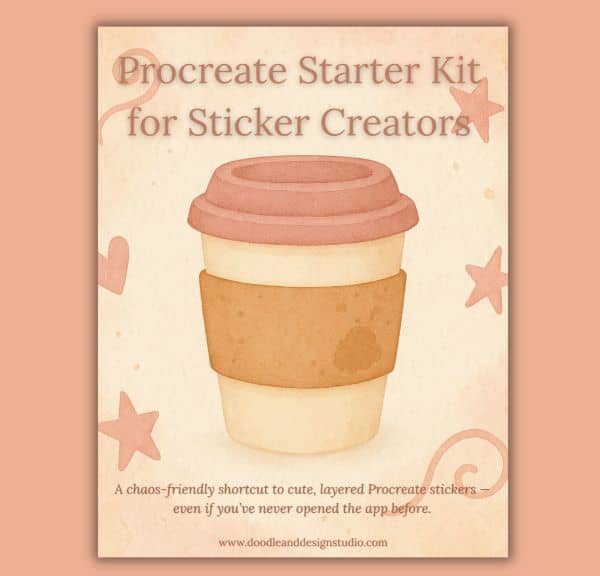
A chaos-friendly shortcut to cute, layered Procreate stickers — even if you’ve never opened the app before.
I created this kit because when I opened Procreate the first time, I had no clue what to tap, layer, or brush. If that’s you, you’re not behind — you’re just beginning. Let’s make it easy and fun.
Grab your starter file, brushes & layer guide. Let’s make stickers!

What You'll Need: Setting Up for Sticker Success
Alright, let's gather your supplies. To make your first sticker, you'll need:
- iPad
- Apple Pencil
- Procreate app
And, to make things even easier, you can grab Cynthia's Free Sticker Brush Mini Pack, now included in the free Procreate Starter Kit!

Getting Started: Creating a New Canvas in Procreate
Let's get started! First, open Procreate and tap on the Gallery. Then, tap the “+” icon in the top right corner to create a new canvas.
For stickers, a 2000 x 2000 pixel canvas size works perfectly. This gives you plenty of room to work with and ensures your sticker will look great, no matter how you use it.
All kinds of information on canvas sizes in Best Canvas Size for Procreate Stickers (Beginner Guide).

Choosing Your Brush: The Foundation of Your Sticker
Now, for the fun part: choosing your brush! You have a couple of options here. You can use the Monoline brush, which is a default Procreate brush found under the Calligraphy tab.
Or, if you want to make it super easy, you can use Cynthia's Sticker Brush from the free brush pack, you can grab it in the free Procreate Starter Kit!
Both options are great for beginners. A specialized sticker brush can help you achieve those clean lines and bold shapes that make stickers pop!
If you want to go down a rabbit hole and buy lots of brushes or just collect some great free ones, be sure and check out Best Procreate Brushes for Stickers (Free & Paid).

Download Your Free Sticker Brush Mini Pack
Ready to grab those custom brushes? Get your free Sticker Brush Mini Pack when you sign up for the Procreate Starter Kit from Doodle and Design Studio.
It includes a line brush perfect for outlines and three fun stamp brushes to get you started.

Sketching Your Sticker Shape: The Heart of the Matter
Okay, let's draw a heart! Don't stress about making it perfect. The goal here is to have fun and learn the process. Just sketch out a simple heart shape.
If you're feeling ambitious, try to make both sides symmetrical, but honestly, who has time for that? The most important thing is to just start creating.
Here are a few tips that may help:
- Start with the basic shape of the heart.
- Lightly sketch the heart and clean up the lines as you go.
- Don't worry about perfection.

Coloring Your Heart: Adding Personality and Pop
Time to add some color! Pick a color you love (a cute pink is always a good choice) and use the color fill tool to fill in your heart shape.

Then, turn off the background layer to make sure your sticker has a transparent background.
Remember, the colors you choose are a reflection of your unique style!

Creating an Outline: Making Your Sticker Stand Out
To make your sticker really pop, let's add an outline. Here’s how:
- Duplicate the heart layer. Swipe down on the layer with three fingers and tap “Duplicate.”
- Change the color of the top layer to white (or whatever color you want your outline to be).
- Slightly enlarge the white heart layer.
- Drag the white layer underneath the colored heart layer.

The outline helps your sticker stand out and gives it that classic sticker look.
You might end up with a slightly “wonky” outline, and you know what? That's totally cool! It gives your sticker a fun, retro vibe.
Be sure and take a peek at 3 Easy Outline Effects in Procreate That Make Your Stickers Pop for even more outline ideas!
If you are interested in more ways to stand out, check out these Procreate sticker making tips.

Experimenting with Brushes from the Mini Pack
Now for the really fun part: let's play with those stamp brushes! The mini-pack includes a washi tape brush, a heart stamp brush, and a sparkle stamp brush. The mini brush pack now lives inside the free Procreate Starter Kit, along with a complete layered sticker file. Having the complete sticker file lets you see exactly how a sticker is made!
Experiment with these brushes to customize your sticker and add your own personal touch. Maybe give your heart a washi tape “band-aid”, or add a sprinkle of hearts and sparkles!

Using the Washi Tape Brush: Adding a Band-Aid Effect
Grab the washi tape brush and add a cute “band-aid” to your heart. Change the color to add some variation and make it your own. This is a simple way to make a really cute addition!

Adding Hearts with the Heart Stamp Brush
Use the heart stamp brush to add tiny heart details around your sticker. Just tap around for a scattered effect, or create a pattern – whatever feels right to you!

Sparkle and Shine: Finishing Touches with the Sparkle Stamp Brush
Who doesn't love a little sparkle? Use the sparkle stamp brush to add a touch of magic to your sticker. Each brushstroke adds a personal touch, making your sticker unique.
Quick Undo and Redo: Correcting Mistakes
Oops, made a mistake? No worries!
Just tap the screen with two fingers to quickly undo. Want to bring it back?
Tap with three fingers to redo. Mistakes are just part of the process, so don't sweat it!
So many mistakes in your life, the Eraser Tool needs to be your bff? We have a post for that too! Eraser Tool Tips for Procreate Stickers (That Even Exhausted Moms Can Master)

Exporting Your Sticker: Saving Your Creation
Alright, you've made your sticker, and now it's time to save it. Tap the wrench icon in the top left corner, then select “Share” and “PNG.”
PNG is the best format for stickers because it preserves the transparent background.
Where to Save Your Sticker: Choosing the Right Destination
Now, where to save your masterpiece? You can save it to your Drive, cloud storage, or directly to your iPad. Choose whichever option works best for you.
Using Your Sticker: Digital and Physical Applications
You've created your first sticker, now what? Stickers can be used in so many ways!
Use them digitally in your digital planners or spice up your social media posts. Or print them out to use as physical stickers!
If you want to print them, you can cut them out by hand, use a Silhouette or Cricut machine, or even a specialized cutting machine like a Juliet.
If you want to know how to design stickers, check out our great guide!
More Sticker Fun: Resources for Continuing Your Procreate Journey
Want to keep the sticker fun going? Check out these resources:
- Shop Our Unique Sticker Designs and Printables: danddstudiodesigns.etsy.com
- Blog Tutorials & Freebies: Doodle and Design Studio
And don't forget to subscribe to my YouTube channel for more sticker tutorials and creative inspiration!

Celebrate Your Tiny Win
You did it! You created your first digital sticker in Procreate! Give yourself a pat on the back.
You took a few minutes out of your busy day to be creative, and that's a win.
Now, keep creating, keep exploring, and keep having fun! Subscribe for more tutorials, and let's keep making those tiny wins together.
Explore More Procreate Sticker Tutorials
Looking for more creative sticker ideas or beginner-friendly Procreate tutorials? Whether you're starting from scratch or just want a cute new project, this list has everything from basic brush tips to full step-by-step designs, all made with busy, messy, magical creators in mind.
Want More Procreate
Whether you’re just starting out or ready to try your next cute design, here’s a full list of tutorials, tips, and easy wins for making stickers in Procreate:
Start Here: Beginner-Friendly Guides
- Procreate Beginner Guide for Stickers
- Making Stickers in Procreate for Beginners
- How to Design Stickers in Procreate
- How Procreate Stickers Boosted My Confidence as a Creative Mom
- How Procreate Helped Me Reconnect with Creativity
- What I Learned from Trying A Daily Sticker Sketch Challenge(and Failing Sometimes Too)
Learn Cute Sticker Drawing Techniques
- Draw a Cute Blushing Star Sticker
- Designing a Cute Bunny Sticker
- How to Draw Cute Cherries
- Draw a Cloud in Procreate (Easy!)
- Design a Daffodil Sticker in Procreate
- Draw a Baby Duck in Procreate
- How to Make Your First Digital Sticker in Procreate (In 10 Minutes!)
- 3 Easy Outline Effects in Procreate That Make Your Stickers Pop
Procreate Tools, Ideas & Tips
- Easy Procreate Sticker Ideas
- Sticker Making Tips in Procreate
- Procreate vs Canva for Sticker Design
- How to Design Stickers
- Procreate Tools for Sticker Design: The Beginner’s Guide for Burnt-Out Moms
- Using Layers for Stickers in Procreate
- Clipping Masks For Procreate Stickers (with Less Stress and More Fun!)
- Best Canvas Size for Procreate Stickers (Beginner Guide)
- Best Procreate Brushes for Stickers (Free & Paid)
- Resizing Stickers in Procreate: The Busy Mom’s Guide to Sanity, Success, and Not Losing It
- Procreate Color Palettes for Stickers, Effortless Sticker Color Magic
- Eraser Tool Tips for Procreate Stickers (That Even Exhausted Moms Can Master)
I have also created an entire Procreate Starter Kit with a complete sticker file so you can see exactly how I made it!
Stay Connected: Join the Creative Community
Let's connect! Follow Doodle and Design Studio on social media:
- Instagram: instagram.com/doodleanddesignstudio
- Pinterest: pinterest.com/DoodleandDesignStudio/
- Facebook: facebook.com/profile.php?id=61574764922234
Be sure and Pin your Favorite Pin to Your Sticker Making Board in Pinterest!