Clipping Masks For Procreate Stickers (with Less Stress and More Fun!)
Let’s be real. You’re exhausted. You’re averaging about three hours of sleep, you’ve reheated the same cup of coffee three times, and you’d probably just like five minutes where no one is yelling “MOM!” at you from another room.
If that little creative itch keeps nagging at you, but your brain can barely handle instructions past “press start,” you’re in the right place.
This post is your go-to beginner’s guide to clipping masks in Procreate , zero stress, just cute stickers, and creative wins.
I'll show you how to use clipping masks for Procreate stickers without losing your mind.

You’re going to find out what the heck a clipping mask even is, why they make sticker-making way less overwhelming, and exactly how to use them so you can feel creative again, even if your “studio” is a kitchen counter covered in Goldfish crumbs.
Need to see it step-by-step? My YouTube channel has short, chaos-friendly demos, made for moms like us. And if you want my printable Layer Cheat Sheet, grab the Free Procreate Starter Kit (it’s packed with helpful tools and zero overwhelm).
And if you want to peek at even more beginner tips, check out all the best Procreate tools for creating stickers, because shortcuts are friendship, right?
Table of Contents
Understanding Clipping Masks in Procreate

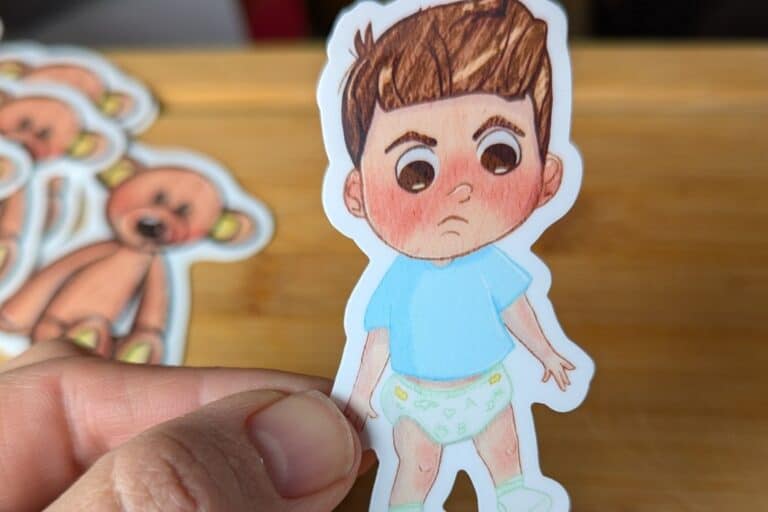
If you’ve ever wanted to add blush to a little cutie without painting all over their little face (or your nerves), clipping masks will feel like the magic cheat code of digital stickers. Seriously.
You get control, calm, and the ability to fake a pro-layered look even when you’re half-listening to a Cocomelon soundtrack from the other room.
Let’s break down why clipping masks are the not-so-secret workout pants under your “real” pants , comfortable, but with way more style.
What Is a Clipping Mask?
Make Your First Sticker in Procreate
Grab your starter file, the brushes, tips, and step-by-step cheatsheets you need to design your first cute sticker today.
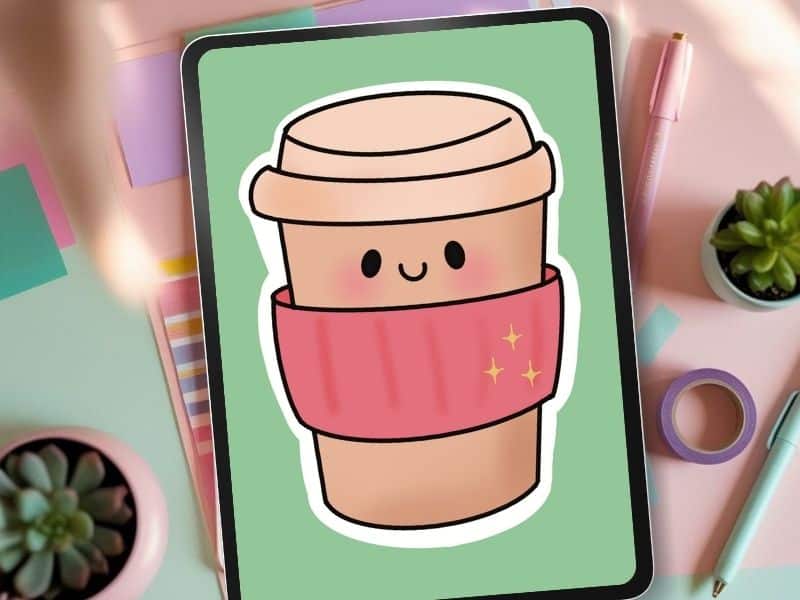
Imagine you tell Procreate, “Hey, only let me color inside this shape.” That’s pretty much the job of a clipping mask.
Think of it like magic frosting that obediently stays inside the lines of your best sugar cookie. No smears, no mess, and definitely no stress.
When you use a clipping mask, anything you draw on the new layer above will only show up inside the shape of the layer underneath.
You don’t have to worry about erasing stray lines or redoing your base art if you accidentally scribble where you weren’t meant to.
So if you’ve ever freaked out at that dreaded “why won’t my shadows behave?!” moment, relax. You are probably just in the wrong spot!
Clipping masks are here to keep your art (and your sanity) snug and safe.
For those starting out and still tangled up with layers, you might want to check out my deep dive on Using Layers for Stickers in Procreate, It’s the first step right before you get to clipping mask glory.

Why Clipping Masks Are Essential for Sticker Creators
Clipping masks are the secret sauce behind “Wow, did you really draw that?” moments.
Here’s the actual reason you need them if you want not just cute, but controlled, stickers:
- Non-destructive creativity: You get to pile on blush, highlights, or goofy smiles right on top without burning the base. Mess up the cheeks? No biggie , delete that top layer and your bunny face is still perfect beneath.
- Effortless shading and textures: Add soft airbrush shadows, sparkles, freckles, or all the teeny details your heart desires. Each new touch gets its own layer, clipped just where you want it. (If you’ve ever tried to erase a shadow and ended up destroying your whole sticker, you know what a relief this is!)
- Sane, simple editing: Since each tweak goes on top, nothing’s permanent or locked in. Change your mind about a color? Ditch it and try again.
For example, I used clipping masks to get that sweet watercolor vibe on petals in my daffodil sticker, layering subtle texture without repainting everything.
If you want a step-by-step on using clipping masks for gorgeous, stay-put highlights or details (like making the cutest strawberries ever), peek at my Procreate Strawberry Sticker Tutorial.
So in plain terms: Clipping masks = super clean, drama-free sticker art. Bless them.
Clipping Masks vs. Layer Masks: What’s the Difference?

Okay, let’s be honest, these names sound like the same thing at 3am after a long day. But they actually work a little differently in Procreate.
- Clipping Masks: The color or shading you add only shows up inside the exact shape on the layer right below. It’s like taping a stencil on top of your art and letting yourself go wild , except you can keep stacking clipping masks for blush, shading, sparkles, or unicorn highlights. Each one stays safely inside the shape without touching the rest.
- Layer Masks: Totally different trick. These are for hiding or revealing parts of the same layer using black, white, and grays. If you want to “erase” without permanently deleting, or create cutting effects, this is your tool. But for most sticker art magic (think stickers with blush, sparkle, or texture)? Clipping masks keep life so much easier.
For a deep dive on the difference between clipping and layer masks, you can check out Masks in the Procreate Handbook.

Quick cheat sheet for sticker making:
Use clipping masks when you want to layer color, details, or textures over a base but still want your base safe and untouched.
Reach for layer masks when you want to hide or bring back parts of a shape (which is mostly handy if you get into photo edits or fancy masking tricks).
Want to build up your sticker skills even more?
If you’re still figuring out the basics or want extra sticker-making wins, swing by my How to Design Stickers guide for more chaos-friendly tips.
And don’t forget, chaos is part of the fun, especially for busy moms sneaking in art between laundry cycles.
Applying Clipping Masks for Creative Effects
So you’ve got your chunky little base layer. Now, it’s time for the clippity-clip magic.
Here’s how to add shading, texture, blush, or even glitter bomb effects , with zero risk of messing up your base sticker.

You should grab my Procreate Starter Pack if you haven't yet, because I have an entire sticker file full of clipping mask layers where you can see this in action.
And the best part? It's completely free!
Steps (yes, you can totally do this before your coffee kicks in):

- Tap the layer above your base color. Hit “New Layer.”
- Tap the new layer, and in the flyout, select “Clipping Mask.” Boom. Now anything you draw will only show up inside the sticker shape, not floating in digital space.
- Start playing: grab a big, soft brush to lay down a shadow, or use a skinny airbrush for cheek blush, sparkles, or extra outlines.
What you can try with clipping masks:
- Textures: Go wild with a grainy brush for a paper look.
- Shading: Add shading with a low-opacity gray or a soft colorful brush.
- Highlights: Hit the side of your sticker with white or pastel shades for glossy shine.

Fun effects: Doodles, freckles, sprinkles, or anything you want , your sticker, your rules.
Beginner Mistakes & Pro Tips for Stunning Stickers
So, you’re excited to jump into Clipping Masks for Procreate Stickers. You watch a YouTube tutorial, set up your canvas, start layering , and bam.
Suddenly, your blush goes rogue, and your sticker looks like art class at toddler daycare.
Welcome to the wild side of digital sticker making, where happy accidents sometimes look like plain old accidents.

Avoiding Common Clipping Mask Pitfalls
Most mistakes with Clipping Masks for Procreate Stickers are so relatable, you might as well call them sticker rites of passage.
But it’s way less annoying when you know how to fix them in two seconds flat. Here are the sticky traps you need to dodge:
- Wrong layer order: Clipping masks only work if the layer you want clipped is directly above your base shape. If it isn’t playing nice, double-check those layers.
- Forgetting to clip: You drew your hearts and shadows, but nothing’s staying inside the lines?
- You probably forgot to tap “Clipping Mask.” It happens. To fix, just tap the layer and select “Clipping Mask” , instant magic.
- You probably forgot to tap “Clipping Mask.” It happens. To fix, just tap the layer and select “Clipping Mask” , instant magic.
- Over-merging layers: You got carried away with the merge feature, now everything’s flattened into one big blob, and you can’t edit details.
- Always keep your effects and details on new clipped layers. Only merge when you’re absolutely, 100% sure you won’t want to change anything (aka never at 2 a.m.). Or you can be paranoid like me and never merge a darn thing!
- Double clipping confusion: You can stack multiple clipping masks for different effects, but make sure you’re clipping to the right base every time.
- If your shadow floats out in sticker space, it’s probably clipped to the wrong layer.
- If your shadow floats out in sticker space, it’s probably clipped to the wrong layer.
Quick repair checklist:
- Check your layer labels (rename them if you must).
- Make sure every clipped layer sits just above the layer you want it to color inside.
- Undo is your BFF , don’t be afraid to use it.

Pro Tips for Layer Mastery and Stress-Free Sticker Design
Sticker art is supposed to be fun, not another to-do list on top of laundry. If you want to keep your digital sticker process actually chill (and even a little bit joyful), these tricks will save you headaches and maybe your sanity:
- Smart naming and grouping: Give every layer a real name, not just “Layer 42.” (You’ll thank yourself when you’re half asleep later.)
- Keep it simple: The fewer things you’re juggling, the easier this gets. Don’t add fifteen blush layers unless you’re passionate about rosy cheeks.
- Take breaks: Creative work helps reset your brain. Drawing stickers on your iPad is the grown-up version of coloring books , and yes, it does boost your mood. Especially if you’re a tired mom looking for a little creativity between snack demands.
Being messy is fine , your layers don’t have to be perfect. Sometimes you add an extra sparkle just because your kid asks for it, or you redo the whole duck because it looked like a pancake. It’s all okay.
You made it. You survived the chaos long enough to learn how Clipping Masks for Procreate Stickers can actually make creative time less stressful and way more fun.
If you want to dive even deeper into digital brush techniques or color harmony, Lisa Bardot at Bardot Brush has some truly helpful (and beginner-friendly) guides.
Her approach is calm, creative, and totally chaos-compatible — highly recommend if you’re exploring beyond stickers.
You don’t need to understand fancy art terms or spend hours trying to fix “oops” moments.
Just open Procreate and play. Make your first sticker, use a clipping mask, and watch your brain do a happy dance just from seeing something cute on screen.
If you need proof that it really is this doable , even when you’re running on snacks and sheer force of will , my YouTube channel is there for you.
No judgey vibes, just real demos for real tired people. And for extra support (or a little self-care boost), check out how Procreate stickers can give you a quick confidence win.
Take five minutes, open Procreate, and make your own mini masterpiece.
Thanks for hanging out, friend. Stickers aren’t magic, but the way you’ll feel after making one just might be.
Love and messy buns,
❤️
Cynthia McDonald
Helping women find creativity in the chaos — with stickers, stationery, and a little bit of fun
have you joined the art to income: create & Sell digital products facebook group?
If you’ve ever said, “I want to draw digitally, but I have no idea where to start,” this is your sign.
We learn Procreate tricks, share designs, celebrate tiny wins, and cheer each other on as we start selling what we make.
💕Join Us on Facebook✨
Want More Procreate
Whether you’re just starting out or ready to try your next cute design, here’s a full list of tutorials, tips, and easy wins for making stickers in Procreate:
Start Here: Beginner-Friendly Guides
- Procreate Beginner Guide for Stickers
- Making Stickers in Procreate for Beginners
- How to Design Stickers in Procreate
- How Procreate Stickers Boosted My Confidence as a Creative Mom
- How Procreate Helped Me Reconnect with Creativity
- What I Learned from Trying A Daily Sticker Sketch Challenge(and Failing Sometimes Too)
Learn Cute Sticker Drawing Techniques
- Draw a Cute Blushing Star Sticker
- Designing a Cute Bunny Sticker
- How to Draw Cute Cherries
- Draw a Cloud in Procreate (Easy!)
- Design a Daffodil Sticker in Procreate
- Draw a Baby Duck in Procreate
- How to Make Your First Digital Sticker in Procreate (In 10 Minutes!)
- 3 Easy Outline Effects in Procreate That Make Your Stickers Pop
Procreate Tools, Ideas & Tips
- Easy Procreate Sticker Ideas
- Sticker Making Tips in Procreate
- Procreate vs Canva for Sticker Design
- How to Design Stickers
- Procreate Tools for Sticker Design: The Beginner’s Guide for Burnt-Out Moms
- Using Layers for Stickers in Procreate
- Clipping Masks For Procreate Stickers (with Less Stress and More Fun!)
- Best Canvas Size for Procreate Stickers (Beginner Guide)
- Best Procreate Brushes for Stickers (Free & Paid)
- Resizing Stickers in Procreate: The Busy Mom’s Guide to Sanity, Success, and Not Losing It
- Procreate Color Palettes for Stickers, Effortless Sticker Color Magic
- Eraser Tool Tips for Procreate Stickers (That Even Exhausted Moms Can Master)
I have also created an entire Procreate Starter Kit with a complete sticker file so you can see exactly how I made it!
Make sure and grab your favorite Pinterest Pin and Save it to your Digital Art Pinterest Board