Eraser Tool Tips for Procreate Stickers (That Even Exhausted Moms Can Master)
Let’s get honest for a second. You’re a mom. You’ve got, what, six seconds of quiet as someone’s probably smearing applesauce on the walls?
Still, you want to do something creative that feels like it’s just for you.
This is where Procreate swoops in holding a glittery “mom sanity” card.
And if you’re eyeing custom digital stickers, the Eraser Tool is your new BFF.

It’s not just an “oops” fixer; it’s how you make those stickers look crisp, cute, and crazy professional, even if you drew them while someone screamed “MOM” in the background.
What’s in it for you besides bragging rights?
You’ll save time (put that on a mug), get total creative control, and skip the “why is this edge so weird” drama.
I’ll show you which tool tweaks to actually bother with, share some pro “don’t cry, just do this instead” tricks, and, because I love you—help prevent those classic mom-artist mistakes.
Let’s make your sticker hobby as easy as skipping a laundry day.
Table of Contents

Getting Started with the Eraser Tool in Procreate
First things first, the Eraser Tool isn’t some boring afterthought stuck in the Procreate corner. It’s actually how you turn “ehhh” sticker sketches into clean, professional-looking designs.
- You get it by tapping the little eraser icon at the top right. Guess what? The eraser uses the same brushes as your main tool, so you’re not stuck with just a boring default.
- Drag that little brush slider left or right to dial in the size.
- Want to erase super precisely or just go full sledgehammer on a mistake? You can do both with zero shame.
Pro tip: If you’re after those satisfying sticker outlines (you know, the kind that look like you bought them on Etsy, even if you didn’t), the Eraser Tool is your not-so-secret weapon.
Nail the basics here, and you’re already halfway to sticker superstar status.

Choosing the Right Eraser Brush
Picking an eraser brush in Procreate is like choosing your caffeine for the morning: get it wrong, and it shows all day. Don’t just go with whatever is open by default.
- For outlines and cut lines, use a hard round brush. This makes the edges crisp and sticker-like.
- For tiny details or whiskers on a cat sticker, switch to a finer, more detailed brush.
- Soft brushes are fun for erasing colored-in parts or blending, but not so great for that “peel and stick” edge.

Customizing your brush is kind of addictive, too. Tweak the size with the slider, and see if increasing opacity helps make small, subtle changes.
Play! Trust me, your future self will thank you for that extra two seconds spent getting it right.
Make Your First Sticker in Procreate
Grab your starter file, the brushes, tips, and step-by-step cheatsheets you need to design your first cute sticker today.

Customizing Eraser Settings for Different Sticker Styles
Here’s where it gets fun(ish). Tweak the eraser settings to match your sticker vibe:
- Opacity: Lower it to lightly fade out bits without going full erase-mode. Great for when you need to clean up smudges but don’t want to nuke the whole thing.
- Streamline: This smooths your eraser strokes (and hides those inevitable coffee-wobble shakes). Higher streamline means silkier lines, perfect for cut-line edits.
- Brush Resizing: Make the eraser brush tiny to fix tight corners, or huge to clear big blobs in seconds.
Try tweaking these settings across a few sticker types. You’ll know you nailed it when your stickers look ready for print and you only muttered one mild curse during clean-up.
For a deeper dive on paint, smudge and erase check out the Procreate Handbook.

Pro Techniques for Using the Eraser Tool on Stickers
Want your stickers looking “pro” even when juggling kid chaos? Use these practical, time-saving Eraser Tool tips.
- Quick-tap two fingers to instantly undo a mistake. Accidents? Never heard of them.
- Zoom way, way in. Like, zoom till your whole screen is an eyelash. This gives you way more control on messy bits.
- Use duplicate layers. Give yourself a safety net, mess up and just delete the copy.

Layer Management for Efficient Editing
Layers in Procreate are like secret stashes of chocolate in the pantry; use them smartly, and life is a whole lot easier.
Keep your sticker artwork separated into background, outlines, color fills, and extra doodads.
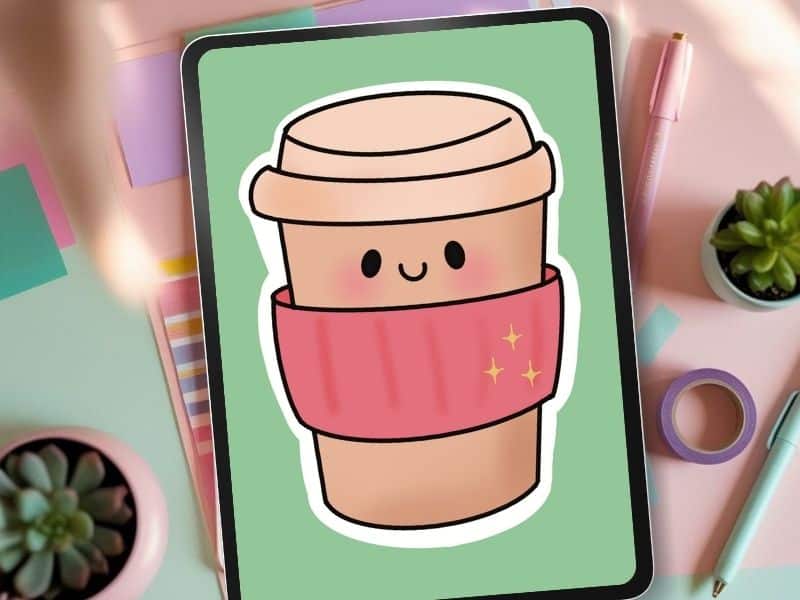
Picture this: You just finished a cute coffee cup sticker, but you want to tweak the steam lines without wrecking the whole design.
If those steam lines live on their own layer, you can erase, adjust, orredraww just them. Zero drama.
For a full rundown and some chaos-proof strategies, here’s a deep dive on how to layer stickers in Procreate. Trust, it’s as easy as hiding veggies in toddler snacks.
Not sure what size to make your canvas in the first place? Check out my guide on the best Procreate canvas size for stickers so everything fits and prints just right.

Common Mistakes and Quick Fixes when Erasing
Let’s be real. The eraser gets a bad rep, mostly because we all bungle it now and then. Here’s a cheat sheet for surviving the big sticker mistakes:
Rough Edges
If your outline’s scraggly, switch to a harder brush and zoom in. Hold your breath for bonus steadiness. If all of your lines look scraggly, no matter what you do, make sure to check your DPI; if it isn't 300, you will have less than stellar outcomes.
Oops, Erased Too Much
Happens faster than you can say “why is this layer locked?” Don’t panic.
Two-finger tap brings it right back, or go to the left sidebar and slide the opacity up to see if you just faded instead of erased.
Lost Details
Too big a brush? Drop it down, and try lowering the eraser opacity to gently refine instead of bulldozing.
Sometimes, less is so much more.
Still struggling with sticker sizing? Here’s how to resize perfectly in Procreate.
Pro-Tip List for Mom Survival
- Always duplicate before big edits.
- Keep your outline layer on top, color fills under.
- Don’t erase hangry. Walk away, then come back (preferably with coffee).
Stickers in Procreate don’t have to be a stress test. With these Eraser Tool Tips for Procreate Stickers, you’ve got the shortcut to clean outlines, saved time, and total artistic control… even if your toddler’s glued to your ankle.
Play with different brushes, dial in your opacity, and stack your layers like a snack-time hero.
Check out Clipping Masks For Procreate Stickers (with Less Stress and More Fun!) when you are ready to add depth and dimension to your stickers!
When you want more quick wins, check out my YouTube channel for “real life, real fast” videos.
Want tools, templates, and brush hacks that make sticker cleanup 10x easier?
Grab my free Procreate Starter Kit and take the guesswork out of clean sticker design. It’s mom-tested, chaos-approved.
Want to upgrade your toolkit even more? Check out my post on the best Procreate Tools for Sticker Design: The Beginner’s Guide for Burnt-Out Moms to boost your workflow.
Love and messy buns,
❤️
Cynthia McDonald
Helping women find creativity in the chaos — with stickers, stationery, and a little bit of fun
Want More Procreate
Whether you’re just starting out or ready to try your next cute design, here’s a full list of tutorials, tips, and easy wins for making stickers in Procreate:
Start Here: Beginner-Friendly Guides
- Procreate Beginner Guide for Stickers
- Making Stickers in Procreate for Beginners
- How to Design Stickers in Procreate
- How Procreate Stickers Boosted My Confidence as a Creative Mom
- How Procreate Helped Me Reconnect with Creativity
- What I Learned from Trying A Daily Sticker Sketch Challenge(and Failing Sometimes Too)
Learn Cute Sticker Drawing Techniques
- Draw a Cute Blushing Star Sticker
- Designing a Cute Bunny Sticker
- How to Draw Cute Cherries
- Draw a Cloud in Procreate (Easy!)
- Design a Daffodil Sticker in Procreate
- Draw a Baby Duck in Procreate
- How to Make Your First Digital Sticker in Procreate (In 10 Minutes!)
- 3 Easy Outline Effects in Procreate That Make Your Stickers Pop
Procreate Tools, Ideas & Tips
- Easy Procreate Sticker Ideas
- Sticker Making Tips in Procreate
- Procreate vs Canva for Sticker Design
- How to Design Stickers
- Procreate Tools for Sticker Design: The Beginner’s Guide for Burnt-Out Moms
- Using Layers for Stickers in Procreate
- Clipping Masks For Procreate Stickers (with Less Stress and More Fun!)
- Best Canvas Size for Procreate Stickers (Beginner Guide)
- Best Procreate Brushes for Stickers (Free & Paid)
- Resizing Stickers in Procreate: The Busy Mom’s Guide to Sanity, Success, and Not Losing It
- Procreate Color Palettes for Stickers, Effortless Sticker Color Magic
- Eraser Tool Tips for Procreate Stickers (That Even Exhausted Moms Can Master)
I have also created an entire Procreate Starter Kit with a complete sticker file so you can see exactly how I made it!
Make sure and grab your favorite Pinterest Pin and Save it to your Digital Art Pinterest Board