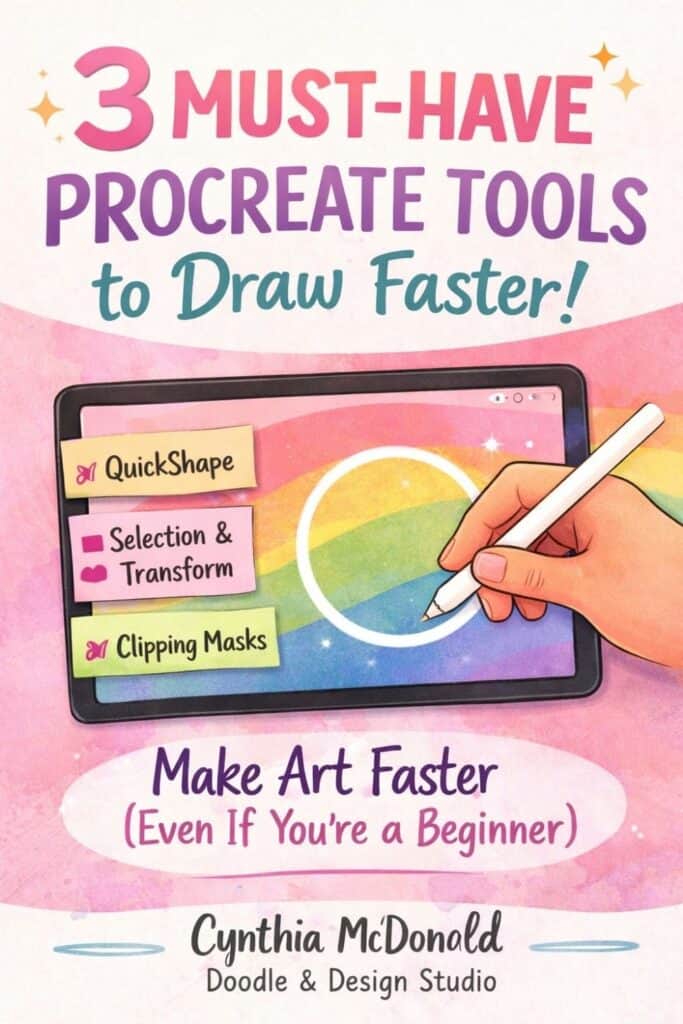
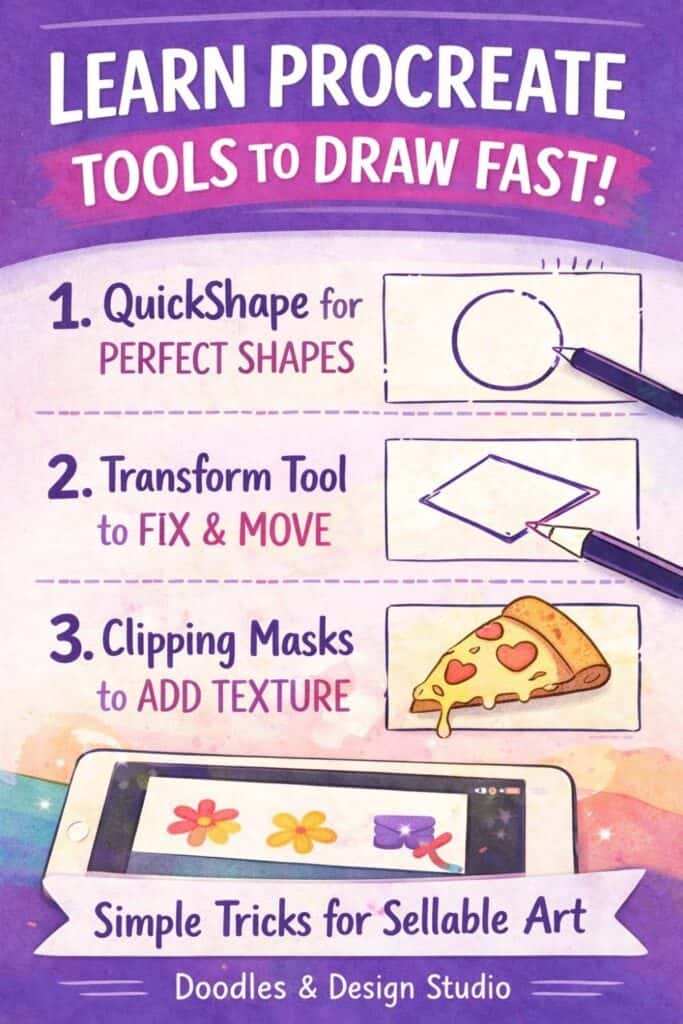
3 Procreate Tools You Actually Need to Draw Faster (and Sell Your Art)
You don’t need 50 brushes or 10 million layers to practice digital art. You need a few solid tools you can use in every single workflow so you can stop fiddling and start making.
These three Procreate tools help you create faster, build confidence, and get your art closer to “yep, I can sell this” without redrawing the same circle 47 times.
Table of Contents
Procreate Tools to Draw Fast, The 3 You’ll Use Every Time
You’re focusing on:
- QuickShape
- Selection tool plus Transform
- Clipping Mask
No hours spent fixing “almost a circle” mistakes. Just a smoother workflow that keeps you moving.
If you’re already thinking about stickers or printables, you’ll also love this beginner friendly guide: Essential Procreate tools for sticker design

Tool 1: QuickShape, perfect shapes without the struggle
QuickShape is the shortcut that quietly saves your sanity.
What QuickShape does
You sketch a shape, then hold your Apple Pencil down on the screen. Procreate snaps it into a clean version, like a circle, ellipse, triangle, square, or line. If you want the official explanation straight from the source, Procreate breaks it down here: Procreate QuickShape guide
Triangles, circles, and yes, a quadrilateral
Draw your triangle, hold, and it snaps into place. From there, you can adjust it using the little nodes, so you can tweak angles without redrawing.
Same thing with a wobbly circle. Hold to get an ellipse, then tap your screen to pop it into a perfect circle. You can even toggle between circle and ellipse after it snaps, which is weirdly satisfying.
Perfect lines, instantly
Draw a line, hold it down, and boom, straight line. It’s simple, but it adds up fast when you’re building icons, borders, sticker shapes, or anything with clean edges.
Squares and rectangles
Try to draw a square, hold, and Procreate corrects it. Once it snaps, you’ll get nodes that let you pull it into a rectangle if you want.
The point is not perfection, it’s speed. You get clean shapes, then you move on to the fun part.

If you’re overwhelmed, start here: Free Digital Drawing Guide
If Procreate still makes your brain glitch, and because it has cute drawing prompts, grab this: Digital Drawing without the Overwhelm. You’ll focus on a few simple tools, small finishable pieces, and building confidence without pressure.
✏️ Once you’ve got your shapes under control, it’s time to level up your edits. The next tool helps you move, resize, and adjust your art without starting over (because nobody has time to redraw the same slice of pizza 12 times).

Tool 2: Selection tool plus Transform, fix stuff without starting over
The selection tool is the little S icon up top. It lets you grab part of your art and move it, reshape it, flip it, whatever, without touching the rest.
The fastest way to use it (aka the pepperoni fix)
Say you drew a pepperoni on your pizza and you hate where it landed. Select it with freehand, tap Transform, and slide it into a better spot.
That’s it. No redrawing. No rage.
Selection modes you’ll actually use
You can switch your selection type depending on what you need:
- Freehand: best for doodles and organic shapes
- Rectangle: best for blocks, labels, and clean edges
- Ellipse: best for round selections
There’s also options like color fill and feathering selections, if you want softer edges. You can check out Resizing Stickers in Procreate: The Busy Mom’s Guide to Sanity, Success, and Not Losing It for even more information on using the transform and selection tools together.
💡Want to Start Selling Your Art?
The Art to Income Membership gives you one beginner-friendly project each month, trend ideas, templates, and step-by-step help — so you’re not stuck wondering what to make or how to start.
Perfect if you’ve got an iPad, some creativity, and no clue what you’re doing (yet). We’re all figuring it out together, one small win at a time.
🎨 Join the Membership for $17/monthTransform options: the ones worth playing with
Once you select something, tap Transform and you’ll see:
Uniform: scales everything evenly, no weird stretching
Freeform: lets you move each node, great for small fixes
Distort and Warp: the fun ones, especially when you want to push shapes around (like making a crust look puffier)
You can also flip, rotate, and fit things to canvas. This is gold for quick pattern layouts, especially when you duplicate an element and flip it so the direction changes.
If you’re trying to make sticker sets faster, this fits right in with the workflow in Beginner’s guide to making digital stickers in Procreate
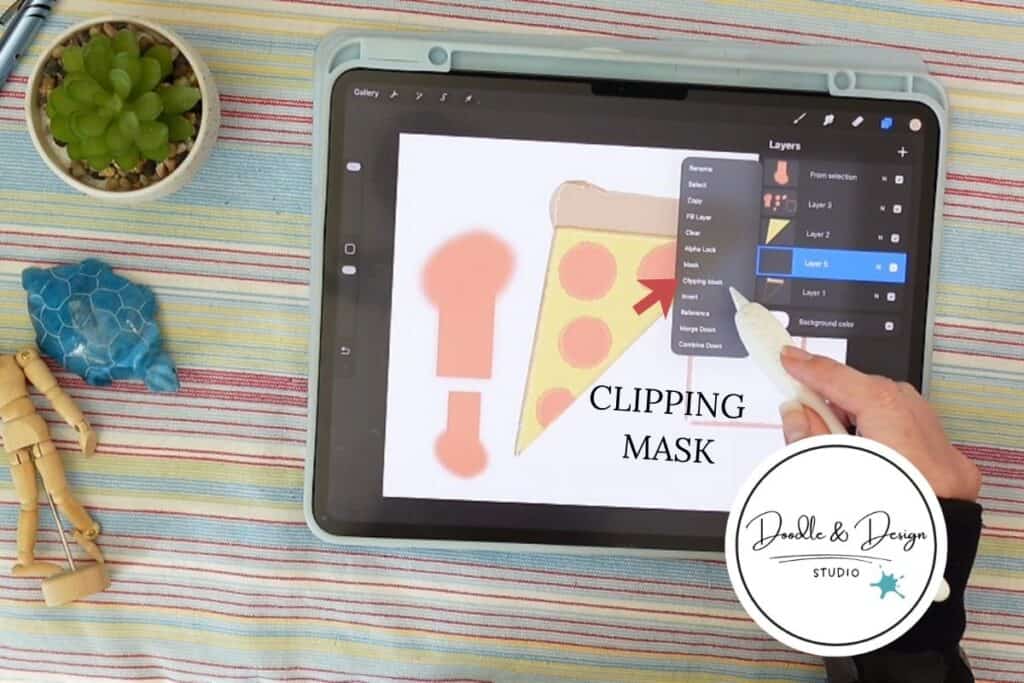
Tool 3: Clipping Mask, add texture and shading without the mess
Clipping masks are a time saver because they keep your edits trapped where they belong.
How to set it up
Make a new layer above your base layer, tap it, and choose Clipping Mask. Now anything you draw on that top layer only shows up on the layer underneath. I also have an entire post on Clipping Masks For Procreate Stickers (with Less Stress and More Fun!) if you are interested in a deep dive!
Want the official mask info (plus related options like Alpha Lock)? Here’s the handbook page: Procreate mask basics
have you joined the art to income: create & Sell digital products facebook group?
If you’ve ever said, “I want to draw digitally, but I have no idea where to start,” this is your sign.
We learn Procreate tricks, share designs, celebrate tiny wins, and cheer each other on as we start selling what we make.
💕Join Us on Facebook✨
Why it’s so good for product ready art
You can:
- Add texture to just the crust, then lower opacity
- Add shading to cheese on a separate clipped layer
- Try different brushes without committing
And if it looks funky (it happens), you delete that clipped layer and your base art is untouched. That’s non destructive editing, and it keeps you brave enough to experiment.
💖 Key Takeaways (Pin These for Later!)
- ❤️ QuickShape helps you snap shapes into perfect circles, lines, and squares without redrawing 12 times.
- ❤️ The Selection tool + Transform lets you move parts of your art without starting over — even pepperoni slices.
- ❤️ Clipping Masks make it easy to add texture and shading without messing up your base layer (and your sanity).
- ❤️ You don’t need 100 brushes — just a few tools you actually know how to use well.
- ❤️ The right tools make your art cleaner, faster, and more sellable without extra overwhelm.
💖 Frequently Asked Questions
- ❤️ What Procreate tools should beginners focus on?
QuickShape, Selection + Transform, and Clipping Masks. These give you fast, clean shapes, easy corrections, and non‑destructive edits. - ❤️ Is Procreate good for making sellable art?
Yes! Procreate gives you export options (PNG, PSD, PDF) and precision tools you need to make prints, stickers, templates, and other digital products. - ❤️ What’s the difference between Selection and Transform?
Selection lets you isolate part of your art; Transform lets you scale, skew, rotate, distort, and reposition it without redrawing. - ❤️ Can you use these Procreate tools for stickers and prints?
Absolutely! Tools like QuickShape and Clipping Masks make stickers, prints, and patterns easier by keeping edges clean and edits reversible. - ❤️ Do I need a stylus to use Procreate?
Procreate works best with an Apple Pencil (or compatible stylus) because it gives you pressure sensitivity and gesture control for precise art.

🎨 Art to Income Membership
Turn your doodles into dollars — one simple, sellable project at a time.
If you're staring at Procreate wondering how people go from drawing frogs in sweaters to actually selling stuff — you're not alone.
This membership helps you go from “where do I even start?” to having a finished product ready to list.
Each month you’ll get:
💖 One guided project to create and list a finished product
💖 Done-for-you assets to speed things up
💖 Trend + keyword ideas so you know what people are actually buying
💖 A supportive group of artists figuring it out right alongside you
💖 Listing and promo ideas so your art doesn’t just sit in a folder
You don’t need to be techy, trained, or totally “together” — just curious enough to try.
If you’ve been stuck thinking you need more brushes, more layers, and more skills before you can create something sellable, take a breath. With QuickShape, the selection tool plus Transform, and clipping masks, you can build cleaner art faster and tweak it without starting over.
Try these on one simple doodle today, even if it’s a lopsided pizza. Then tell yourself the truth: you’re already making progress, you’re just upgrading your tools.
🎥 Prefer to learn by watching?
I’ve got a YouTube channel full of quick, no-pressure tutorials made for tired, creative souls like you.
Subscribe here and catch your next creativity boost, one sticker at a time.
Love and messy buns,
❤️
Cynthia McDonald
Helping women find creativity in the chaos — with stickers, stationery, and a little bit of fun
This post may contain affiliate links. I may earn a commission if you make a purchase at no extra cost to you.
Make sure and grab your favorite Pinterest Pin and Save it to your Digital Art Pinterest Board