Procreate Basics for Beginners: Get Calm, Get Good, Start Making Sellable Art
You downloaded Procreate, opened your iPad, and got smacked in the face by 40 buttons. Classic. Your brain whispered, “Nope,” and your finger hovered over the home button like it was a fire alarm.
Breathe. You don’t need to learn everything today. You just need a few basics that keep you out of panic mode, so you can start making art that actually turns into stickers, planners, clip art, and other cute stuff people buy.
Table of Contents
The quick setup that saves you from future heartbreak
If you only do three things before you draw, do these.
1) Pick a canvas size based on what you sell
Start bigger than you think you need. Resizing down later is way less painful than trying to scale up a tiny file that turns crunchy.
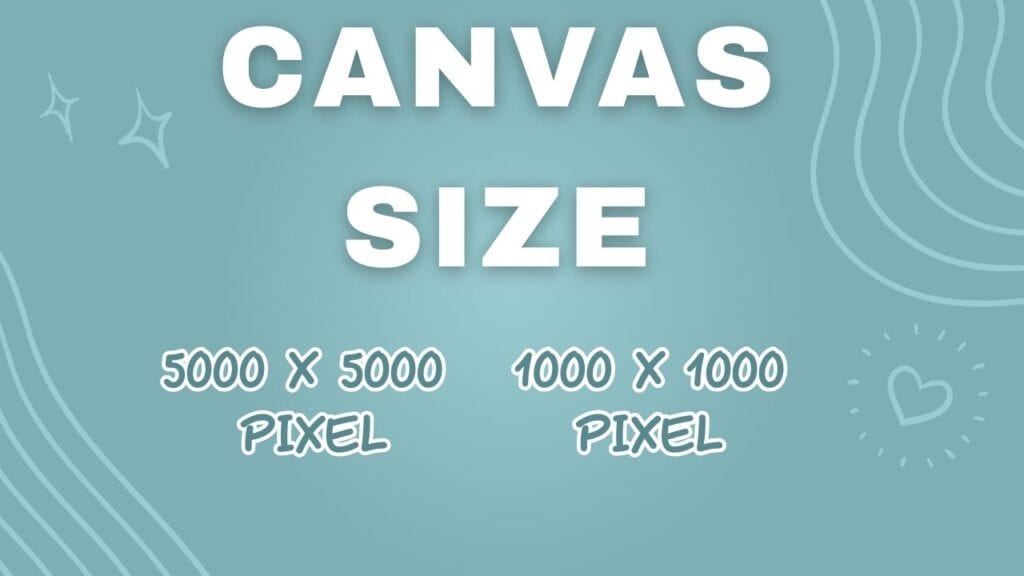
- Default safe size: 5000 by 5000 pixels (works for a lot of product types)
- Digital stickers only: 1000 by 1000 pixels at 72 DPI (smaller files, easier for customers to store)
If stickers are your main thing, this guide helps you choose sizes without guessing: Procreate sticker canvas size guide
2) 🌈 RGB vs CMYK — Which Should You Use?
Color settings feel boring until you print something and your pretty colors look… tired.
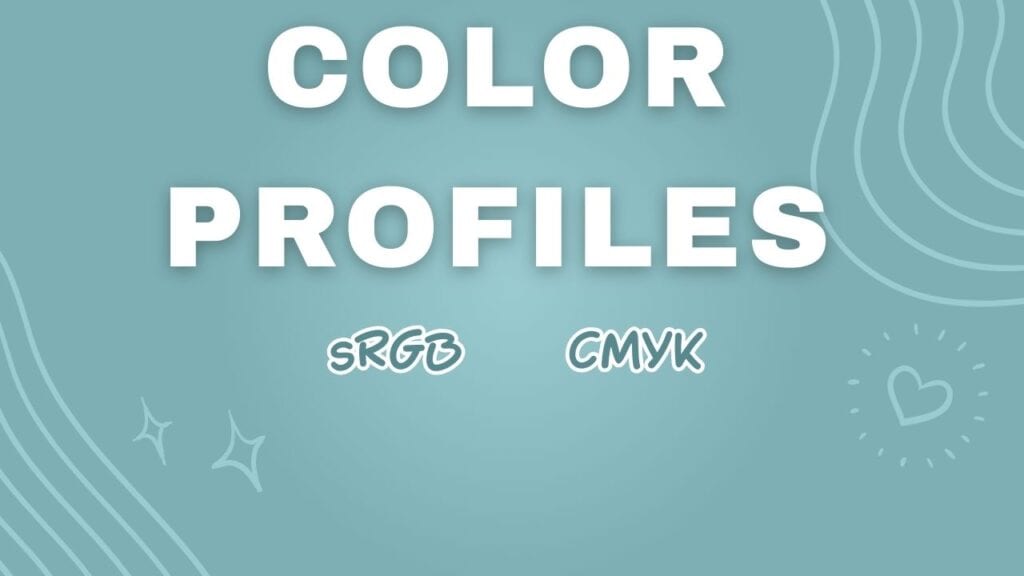
- RGB: Great for planners, stickers, PNG clip art, and most digital use, also many home printers handle it well
- CMYK: Often used for professional printing, it can look more muted on some sticker prints
If you’re getting products manufactured, check what the manufacturer wants, then run a small test print if you can. Your eyes get the final vote.
3) Pick one brush, yes one, and chill
Brush shopping is a hobby. A fun one. Also a massive time thief.
Pick one brush and use it for:
- Brush tool
- Eraser tool
- Smudge tool
Stick with that one brush for a week. You’ll learn how it behaves fast, and you stop wasting your drawing time scrolling.
The Procreate moves you’ll use every single session
Learn these once, and your future self will be smug about it.
- Two finger tap = undo
- Pinch = zoom in, zoom out
- Three finger swipe = copy and paste menu (cut, copy, duplicate, paste)
Practice them until you do them without thinking. It’s the closest thing Procreate has to a cheat code.
Layers 101: the difference between “oops” and “ruined”
If you draw everything on one layer, you are one mistake away from staring into the void.
A simple layer stack that works:
- Sketch layer
- Line art layer
- Color layers (separate layers per color if you want easy edits)
- Background layer (optional)
Rename layers if you can. If you can’t, welcome to the club, you’ll still survive.
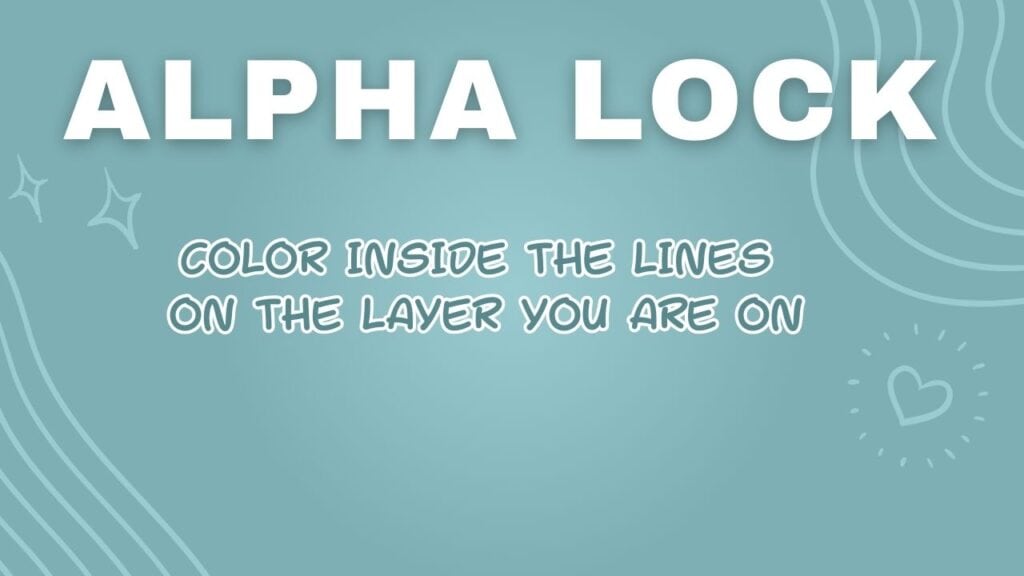
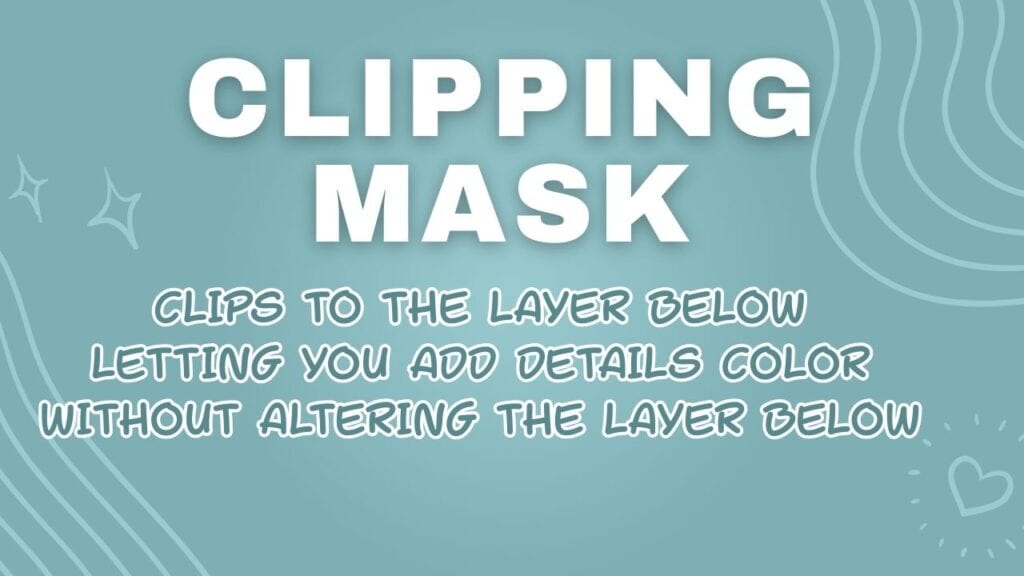
Alpha lock vs clipping mask (so you stop fighting your own art)
Both keep you “inside the lines,” but they behave differently.
| Tool | What it does | Best for | The catch |
|---|---|---|---|
| Alpha lock | Paints only on existing pixels of that layer | Quick recolors, adding texture directly | Mistakes affect the base color on that layer |
| Clipping mask | Puts edits on a new layer that only shows inside the layer below | Shadows, highlights, texture you might change later | Slightly more layers to manage |
If you love control (and also make “happy accidents”), clipping masks are your best friend.
A beginner workflow you can repeat every time
This is the part where things start feeling doable.

Sketch, then lower the pressure
- Start with a sketch layer.
- Add a new layer on top, lower the sketch opacity.
- Set the sketch layer to multiply so it stays visible but lighter.
Line art, slow and steady
Create your line art on a new layer. This is where you clean things up, fix shapes, and make it look how you want.
Color like you plan to sell it
Put color layers under your line art. Separate layers per color make it easy to adjust for:
- customer requests
- new colorways
- matching a product theme
Want faster fills? Set your line art as a reference layer, then color drop into your color layers.
Keep backgrounds simple at first
Add a background layer underneath everything if you want one. Start basic. Build skills one at a time.
If you need a full sticker focused walkthrough after this, use this: Simple guide to designing stickers in Procreate
Quick fixes that make your art look instantly cleaner

Quick shape for straight lines and perfect circles
- Draw your line, then press and hold with the Apple Pencil to snap it straight
- Draw an ellipse, hold, then tap the screen with your finger to turn it into a circle

Selection tool for “why is that eyeball doing that”
Use the selection tool to grab part of your art and move it, resize it, or fix weird little issues. Use freehand for organic shapes. Use transform options like distort when you need to nudge things into place.

Export settings for sellable files (the ones people actually need)
Go to Actions menu, Share.
- PNG: transparent background, best for most digital product art
- JPEG: fine for digital invites or images with a background
- PSD: best if you want to edit later in Photoshop
- PDF: useful if you’re focused on printing
If you want transparent PNGs, turn off the background layer before exporting.
Simple art sells, because it’s about feelings, not flexing
Your art doesn’t have to be realistic or packed with details to be worth money. People buy art because it meets a human need. It makes them laugh, feel seen, or feel cozy for five seconds in a chaotic day.
So yes, make the simple sticker. Make the cute clip art. Make the wall print that feels like a warm little pep talk.
💡Want to Start Selling Your Art?
The Art to Income Membership gives you one beginner-friendly project each month, trend ideas, templates, and step-by-step help — so you’re not stuck wondering what to make or how to start.
Perfect if you’ve got an iPad, some creativity, and no clue what you’re doing (yet). We’re all figuring it out together, one small win at a time.
🎨 Join the Membership for $17/monthIf you’re overwhelmed, start here Free Digital Drawing Guide
If Procreate still makes your brain glitch, and because it has cute drawing prompts, grab this: Digital Drawing without the Overwhelm. You’ll focus on a few simple tools, small finishable pieces, and building confidence without pressure.

💖 Quick Answers (For When You Want the Summary)
- What canvas size should you start with? 5000 by 5000 pixels if you’re unsure. For digital stickers only, 1000 by 1000 at 72 DPI works great.
- RGB or CMYK? RGB is best for vibrant digital use. For print, check manufacturer specs and test your colors when you can.
- Best export file type? PNG for transparent backgrounds, PDF for print, and PSD if you’ll edit in Photoshop.
💖 Key Takeaways (Save for Later!)
- ❤️ Start with a canvas size of 5000x5000px — or 1000x1000px for digital stickers only.
- ❤️ Use RGB for digital products, CMYK if you're working with a manufacturer.
- ❤️ Stick to one brush for a week — it saves time and builds confidence.
- ❤️ Learn the core Procreate gestures: undo, redo, copy & paste — they’re your secret weapons.
- ❤️ Use layers smartly: separate sketch, line art, and colors to make edits easier.
- ❤️ Export as PNG for digital products, PDF for print, and PSD if you plan to edit in Photoshop.
- ❤️ Simple art is powerful — it’s about connection, not complexity.
Pick one small thing to draw today — and let done be the win. 💪✨
have you joined the art to income: create & Sell digital products facebook group?
If you’ve ever said, “I want to draw digitally, but I have no idea where to start,” this is your sign.
We learn Procreate tricks, share designs, celebrate tiny wins, and cheer each other on as we start selling what we make.
💕Join Us on Facebook✨
💖 More Posts You'll Love
- ❤️ Making Money with Digital Art – A beginner-friendly guide to turning your iPad art into income, one step at a time.
- ❤️ Monetize Digital Art – Tips, tools, and real examples to help you start earning from your creative work.
- ❤️ Overwhelm in Business – Feeling stuck or scattered? This post helps you reset and move forward with calm confidence.
🎥 Prefer to learn by watching?
I’ve got a YouTube channel full of quick, no-pressure tutorials made for tired, creative souls like you.
Subscribe here and catch your next creativity boost, one sticker at a time.
Love and messy buns,
❤️
Cynthia McDonald
Helping women find creativity in the chaos — with stickers, stationery, and a little bit of fun
This post may contain affiliate links. I may earn a commission if you make a purchase at no extra cost to you.
Make sure and grab your favorite Pinterest Pin and Save it to your Digital Art Pinterest Board